




- 30 Day Money Back Guarantee
- AI-Powered Performance Optimization, and Turbo Hosting delivering up to 20x faster speeds
- 24/7/365 in-House Support Available via Phone, Live Chat and Ticket System

- 90-Day money-back guarantee
- Free SSL, Premium malware and Hack protection
- Support available 24/7/365 via Chat, Phone, Email, Tickets and Knowledge Base
Hosting.com vs InMotion: Quick Summary
I found Hosting.com to be the overall winner. It’s more affordable at the start, easier to use for beginners, and comes with stronger built-in security and far more server locations.
InMotion impressed me with faster raw performance and developer features, but Hosting.com offers a better all-around package that suits most users.
1. Prices and Plans Comparison
Hosting.com’s lower entry prices beat InMotion’s higher renewals, which makes it the more budget-friendly option.
When I compared Hosting.com and InMotion, the difference in pricing jumped out right away. Hosting.com starts incredibly cheap, with shared plans from just $1.99/month and WordPress hosting from $2.99/month, though renewals are much higher.
InMotion starts at $2.99/month, but renewals climb quickly too, with most plans ending up costlier than Hosting.com.
VPS hosting is another area where Hosting.com undercuts InMotion, starting as low as $9.99/month compared to InMotion’s $14.99/month.
If you’re looking for the most affordable starting point, Hosting.com gives you more wiggle room in the early stages, even if renewals bring the cost closer later on.
2. Customer Support Comparison: Who’s Got Your Back?
Hosting.com wins with faster and more straightforward live chat support.
Hosting.com Customer Support
I started with Hosting.com, testing both their ticket system and live chat to get a full picture.
Ticket Support (Slower, Formal, but Clear)
From the top-right corner of the Hosting.com dashboard, I clicked Manage Support Tickets → Open Support Ticket.

The form was simple, with fields for the subject, department, and description. To make this test realistic, I submitted a technical security question:

How do I configure the server firewall to allow only ports 22, 80, and 443 and block everything else?
- Time submitted: 8:40 PM
- Response received: 26 hours later
They explained that since my VPS is unmanaged, they couldn’t do it for me, but shared the commands to do it myself.
I appreciated the helpful guidance, though the delay makes tickets not ideal for urgent issues. They’re better for admin or non-urgent requests.

Live Chat (Fast and Super Helpful)
Next, I tested Hosting.com’s live chat by clicking Help at the top corner of the dashboard and then Live Chat. After filling in quick fields (email, support PIN, and department), I asked:
If I install WordPress through Softaculous, will it automatically configure the database and PHP settings, or do I have to tweak them manually?
A bot greeted me first, but within a minute, a human agent joined. They quickly confirmed that Softaculous takes care of everything automatically (database, PHP settings, and installation). The whole chat wrapped up in under three minutes, with a clear, direct, and accurate answer.

Hosting.com’s live chat is the best way to get support. It’s quick, the agents know what they’re talking about, and you don’t feel like you’re chatting with someone just reading from a script.
InMotion Hosting Customer Support
Next, I repeated the process with InMotion Hosting, testing ticket support, live chat, and phone support.
Ticket Support (Detailed but Slow)
From my AMP dashboard, I clicked Get Help → Submit Ticket. I submitted this question:

Can I set up automated backups with rsync over SSH? Are there outbound firewall restrictions?
- Time submitted: 6:29 PM
- Response received: 2:42 AM (around 8 hours later)

The reply was solid. The agent confirmed there were no outbound restrictions by default, explained how to check firewall settings in WHM, and provided links to documentation on rsync and firewall rules. The response was excellent, but again, waiting eight hours isn’t practical if you need help fast.
Live Chat (Immediate and Efficient)
Then I tried their 24/7 live chat, asking about UltraStack hosting and object caching:

Does UltraStack come with Redis or Memcached pre-installed, or do I need to add them manually?
The response was instant. A human agent answered within a minute, confirming Redis and NGINX are pre-installed and sharing a helpful setup link.
This was exactly what I wanted, fast, accurate response, and no wasted time.

Phone Support (Helpful, but Limited Hours)
Finally, I tested phone support. InMotion doesn’t offer 24/7 phone coverage; it’s only available Monday–Friday, 9 AM to 9 PM ET. I called during business hours and asked:
Can I upgrade CPU/RAM on my VPS mid-plan without downtime?
The agent picked up in under three minutes and clearly explained the scaling process, confirming upgrades can be done without interruptions.
The interaction was professional and helpful. The only drawback is that if you need phone help on weekends or late at night, you’re out of luck.
Key Takeaways
- Hosting.com: Tickets are slow but useful for complex, non-urgent issues. Live chat is where they shine. It’s fast, accurate, and handled by real experts.
- InMotion Hosting: Live chat is also excellent, phone support is a nice bonus, but tickets are still slow. The limitation is that the phone isn’t 24/7.
3. Hosting Features Comparison
InMotion offers more developer-friendly features.
Hosting.com Features
When I tested Hosting.com, the focus on speed, security, and reliability was evident. Every plan I tried came with NVMe SSD storage, LiteSpeed servers, free SSL, and unlimited bandwidth, which gave my test site fast page loads.
I also appreciated that weekly automated backups and advanced malware protection were already built in, removing the need for extra plugins.
The migration process was seamless. Their team handled the transfer of my test site without downtime or errors.
I liked that even the Starter plan included a free domain, professional email, and access to unlimited MariaDB databases. With the unified control panel, managing emails, databases, and domains was straightforward.
Performance was rock solid thanks to AMD EPYC CPUs, caching, and load balancing across their global data centers.
Security felt equally strong with protections against brute force, malware, and DDoS attacks. Overall, Hosting.com stood out as a fast, secure, and developer-friendly platform with flexible plans that scale from small sites to high-traffic projects.
InMotion Features
InMotion felt more polished for developers and growing businesses. Right from the start, I noticed the NVMe SSD storage across plans, which gave my WordPress test site noticeably quicker load times.
Their cPanel integration was clean and familiar, which made it easy to manage databases, emails, and domains without any learning curve.
I also appreciated the unlimited email accounts. I could set up as many inboxes as I wanted, unlike Hosting.com’s capped tiers.
Migration was also hassle-free: their team transferred one of my existing sites without downtime. What impressed me most, though, were the developer tools like Python, Node.js, SSH, and Git version control built into shared hosting. That made it easy to test scripts and frameworks beyond WordPress.
4. Website Performance Comparison: Which Hosting Provider Is Faster?
InMotion Hosting is faster overall, with lower load times and stronger GTmetrix scores.
A slow website can hurt your search rankings, conversion rates, and overall user experience.
For this comparison, I used GTmetrix, a trusted tool for measuring real-world speed and web vitals. I set up a site on each host (Hosting.com and InMotion) and ran the tests from the same location (San Antonio, TX) using the same browser environment.
Hosting.com Performance Results
My test site on Hosting.com (https://accountfortest.com/) performed very well.

What stood out here was the balance. Hosting.com delivered consistent speeds, with everything interactive by 1 second.
While the TTFB was slightly higher than InMotion’s, The fully loaded time of just 1.1 seconds was impressive. For small business sites, blogs, or lightweight eCommerce, this kind of stability is excellent.
InMotion Hosting Performance Results
My InMotion test site (https://5c501d3d3a5692585.temporary.link/) pushed even further.

Here, InMotion impressed me with extremely fast first-byte and paint times. The site was interactive in under 700ms, which is outstanding.
The fully loaded time was 3.5 seconds, a bit longer than Hosting.com, since some assets kept loading in the background. Still, in practice, it felt fast because I could interact with it almost immediately.
What the Results Show
- Hosting.com is strong, with balanced performance and very fast fully loaded times (1.1s). It’s reliable, especially for sites where overall completion speed matters.
- InMotion Hosting, however, took the edge with a better TTFB, faster LCP, and zero layout shifts. The site was usable and interactive noticeably quicker.
5. Ease of Use Comparison: Which Platform Is Easier to Use?
Hosting.com delivers a smoother experience overall with its intuitive dashboard and straightforward setup process.
Registration and Creating a New Account
To see how easy it is to sign up, I decided to start with Hosting.com. For me, this is always the first test because if a host makes the registration process confusing, the rest of the experience rarely improves.
Hosting.com
I went straight to the homepage and hovered over the Hosting menu. For this comparison, I wanted to test a VPS plan, so I clicked on Servers → VPS Hosting.

That took me to the VPS overview page, where I selected Compare Plans.
From there, I looked at the available options and chose the VPS M plan and clicked Buy Now. This took me to the product configuration page. Here, I could tailor everything the way I wanted. For example:
- Billing term: I picked the 1-year term, which applied a clear discount. The page immediately updated the total cost on the right-hand panel.
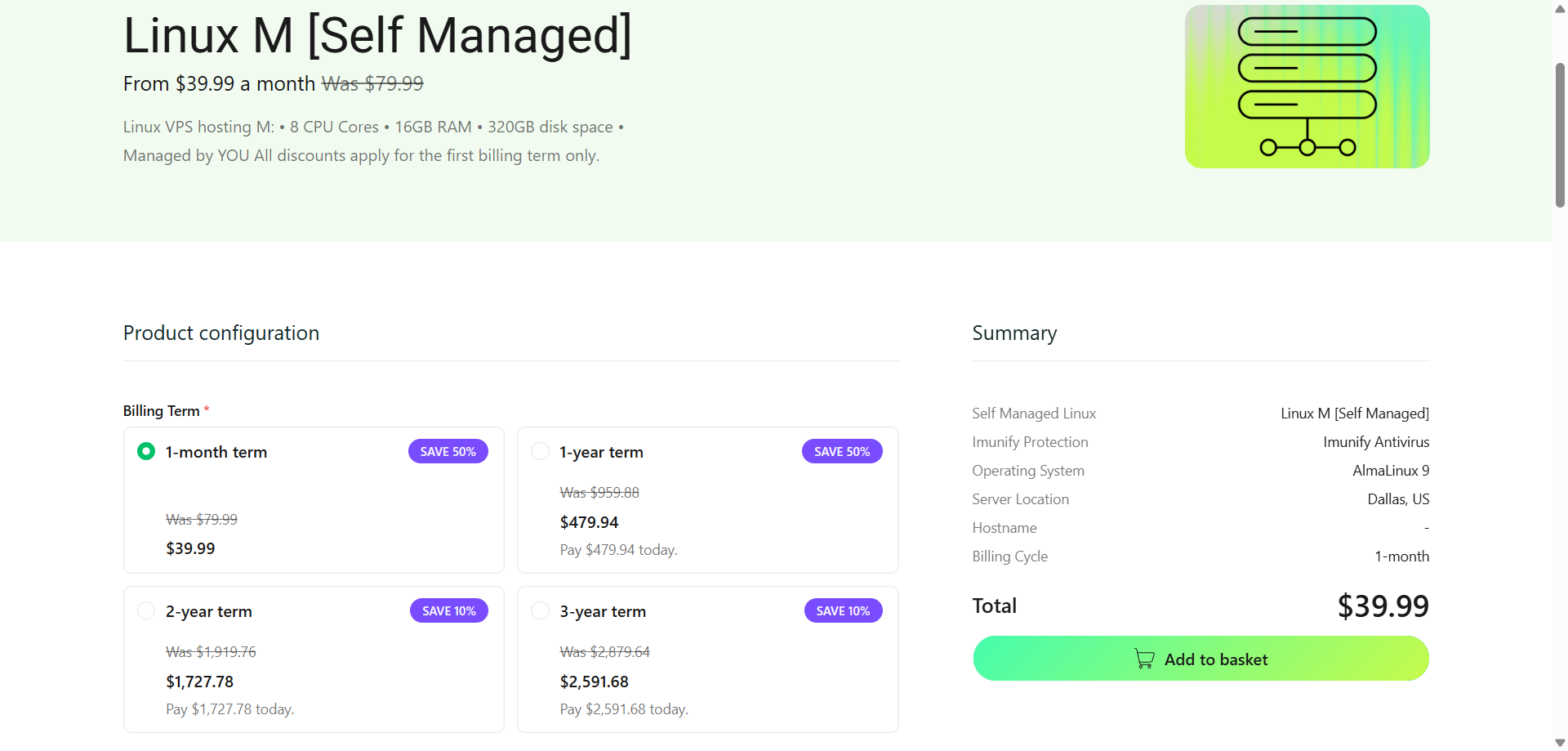
- cPanel and add-ons: Hosting.com listed optional extras like cPanel licences, additional RAM, and CloudLinux. Each add-on was clearly priced so I could make an informed decision.
- Operating system: I selected AlmaLinux, though they also offered Ubuntu and Debian.
- Server location: I chose Dallas, US, but I noticed global options like London, Frankfurt, and Mumbai were also available.
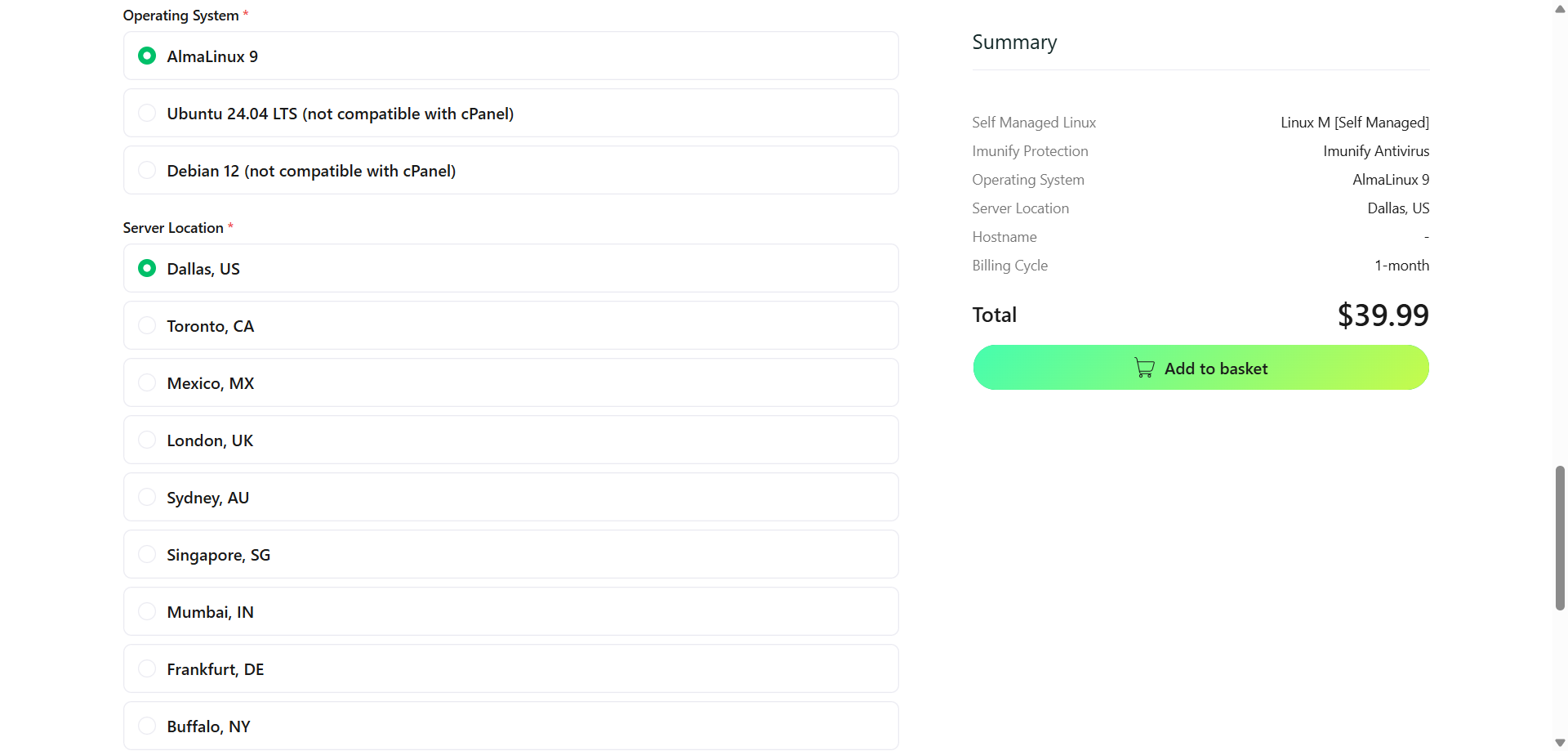


A real-time summary on the right showed my choices: billing, OS, server type, add-ons, and cost, which made it easy to double-check everything.
After reviewing, I clicked Add to Basket and saw the cart with subtotal, discount, and final price. There was even an “Order Notes” section where I could leave instructions, like preinstalling a LAMP stack or setting up cPanel.

I clicked Proceed to Checkout, created a new account, and picked PayPal for payment.
Seconds after placing the order, I got an email with my login and server details.
The whole process was smooth, clear, and fast, without hidden upsells or confusing jargon. From browsing plans to a ready VPS, it took under 10 minutes.
InMotion Hosting
Next, I wanted to see how InMotion Hosting compared. Since I had just gone through Hosting.com’s flow, I was curious to check if the process was just as smooth or if it felt more complicated.
I started by going to the VPS Hosting section on their website and scrolled through the plans.

For this test, I picked the VPS 8 vCPU plan and clicked Select to get started. Right away, I noticed InMotion’s checkout flow was structured into clear steps, which made it easy to follow along.
The first choice I had to make was about the domain setup. InMotion gave me two options:
- Register a new domain through them
- Use my existing domain

Since I already had a domain I wanted to point to this VPS, I selected Use my existing domain and typed it in. This step was straightforward, and I liked that they didn’t push me too hard toward buying a new domain.
The next section was where InMotion started to stand out. They offered me multiple control panel options:
- Unmanaged (no control panel) – free of charge, but only gives you command-line access
- Control Web Panel (CWP) – unlimited accounts, $60/year
- cPanel VPS Admin – five accounts, $306/year (about $25.50/month)

I chose the Control Web Panel option because it struck a good balance between usability and cost. cPanel was much pricier, and unmanaged would have been too barebones for most users.
I liked that the options were clearly explained with exact costs, so I could make an informed choice.
Next, InMotion offered me pre-configuration options for the server:
- WordPress pre-installed
- Standard configuration
- PHP configuration
Since I wanted to test WordPress on this VPS, I chose the WordPress pre-installation, saving the manual setup and showing how much InMotion automates for beginners.
Next, I saw optional add-ons; the most useful was Backup Manager ($2.99/month) for daily backups and one-click restores.
I picked it to see how smoothly InMotion handled backups, which are non-negotiable in real-world hosting.
Then came data center selection. InMotion offered three choices:
- US East
- US West
- Europe

I picked US East since it’s closest to my audience, which should improve speed and reduce latency. Once configured, InMotion showed a clear order summary with plan, add-ons, billing cycle, and total cost.
This was nice for double-checking before moving on.
Next, I created my account with my email, name, and billing info. Payment options included credit/debit cards and PayPal. I chose PayPal again for consistency.

Once I submitted payment, the order went through immediately, and within minutes, I got a confirmation email with server credentials, control panel login, and setup instructions.
InMotion’s registration was clear and efficient, but compared to Hosting.com, it felt heavier with more upfront choices.
Advanced users will appreciate the control, but beginners might find it a bit much. Hosting.com’s real-time summary and smoother layout made it easier and more beginner-friendly.
User Interface: Client Area & Dashboard
Next, I wanted to see how easy it is to actually manage hosting once you’re logged in. The dashboard is key. It’s where you’ll monitor your services, billing, and upgrades.
Hosting.com
After creating my account, I logged into Hosting.com’s Customer Portal and saw a modern, well-organized dashboard giving a clear overview of my account.
The left-hand navigation and central content area update smoothly as you click, so everything refreshes on the same screen instead of jumping between pages.

At the very top, I noticed a few nice touches:
- A personalized greeting saying “Welcome, [MY NAME]”, which made the experience feel a little more tailored.
- A Support PIN, right there on the top bar, which I knew would come in handy when reaching out to their support team. It saves time during verification.
- Quick-access icons for Help, Notifications, Dark Mode, and Profile, all neatly placed in the top-right corner.
On the left sidebar, the structure was simple and easy to follow:
- + Place New Order — a bold button at the top for adding services
- Home — the main dashboard view
- Products & Services — where all my hosting and domain plans live
- Billing — for invoices, payments, and account history
The main content area is organized into overview tabs, including Domains, Hosting & Servers, Websites, Email & Office Tools, and Other, which gave a clear summary at a glance.
Scrolling down shows detailed service cards with Manage buttons for each product, plus helpful prompts like “Add your first product” for empty sections.
Extra action buttons, like Manage Support Tickets and + Place New Order, make common tasks easy to find.
Hosting.com’s dashboard feels clean and functional. Logical categories, tabbed overviews, and well-designed service cards make it simple to see what’s active and what’s still setting up.
Personal touches like the greeting, Support PIN, one-click cPanel login, and service notes make the experience polished and user-friendly.
InMotion
Switching over to InMotion Hosting, I logged into their Account Management Panel (AMP). Where Hosting.com leaned toward a modern, minimal design, InMotion’s AMP had a more traditional layout, with a top navigation bar and multiple tabs that guided me through different sections.
At the top, the navigation included:
- My Account – general account settings and notifications
- Billing – invoices, payments, and upcoming charges
- Domains – registering or transferring domains
- Marketplace – add-ons and upgrades
- Specials and WebPro – promotional offers and agency-oriented features

On the right-hand sidebar, I noticed a feature that really stood out to me: the Billing Snapshot. This panel displayed exactly how much my next payment would be, when it was due, and even showed multiple upcoming payments for the next 30 days.
The central part of the AMP was dedicated to service management. Each hosting product I had purchased was listed separately, with a grid of icons underneath for quick actions.
For example, my VPS hosting plan had icons for:
- cPanel – direct login to the control panel
- WHM and Root WHM – gave me full server management options
- Reset cPanel password, Change root password, and Restart VPS – common but important functions
- Email setup, SSL certificate management, and Backup Manager – all directly accessible without hunting through menus
Hosting.com grouped tools by service (shared hosting for email and WordPress), (VPS for WHM and server controls), which made everything clear.
InMotion’s dashboard is powerful but cluttered, with many icons and notifications. Advanced users will handle it, but beginners might feel overwhelmed.
Overall, AMP is feature-rich, but Hosting.com’s cleaner interface feels more intuitive.
Hosting Setup: Creating a New WordPress Website
To test how easy it is to launch a site, I moved on to installing WordPress. This is a must-have step since most users buy hosting with WordPress in mind.
Hosting.com
On Hosting.com, I went into the Customer Portal, clicked Manage next to my hosting plan, and hit Login to Control Panel.

The one-click login was a pleasant surprise. It took me straight into cPanel without asking for credentials again.
Inside cPanel, I used the Softaculous App Installer. Installing WordPress was quick:
- Clicked “Install WordPress.”
- Selected the domain I wanted to use.
- Entered a site title, admin username, and password.
- Clicked Install.

Within minutes, my WordPress site was live. Everything worked on the first try, and Hosting.com didn’t restrict any cPanel features, so I had full control over databases, subdomains, and backups.
InMotion
On InMotion Hosting, I followed almost the same process. From AMP, I clicked cPanel for my hosting service, which also opened directly without extra logins.

Inside cPanel, I scrolled to Softaculous and found WordPress under “Top Scripts.”

The setup was nearly identical, but InMotion added one extra touch: I could pre-select recommended plugins like caching and backups during installation.

While that was convenient, I found Hosting.com’s process slightly faster and more streamlined.
Server and Hosting Management
Lastly, I tested how each provider handles server management. This matters because when something breaks, you need quick access to recovery tools.
Hosting.com
On Hosting.com, I opened the page for my active VPS plan by clicking Manage next to my hosting plan.

On the management page, right at the top, I saw a panel of critical server actions.
These weren’t buried in menus. They were front and center, clearly labeled, and one click away:
- Reinstall Server
- Console Login
- Power Controls
- Recovery ISO Mode

Scrolling further down, the interface was divided into three tabs:
- Overview – A quick snapshot of the server’s key details, including hostname, IP address, OS, and root credentials.
- Billing – A clean section showing my subscription period, renewal date, and plan details.
- Settings
Two small but very thoughtful features stood out:
- Product Notes – A simple field for reminders like “Client A’s WordPress site,” helpful when managing multiple servers
- Product Secrets – An encrypted vault (AES-256) for root passwords, SSH keys, or API tokens; Most providers leave this to separate password managers, so having it built into the dashboard is a big convenience.

Beyond the features, what impressed me most was the user experience. Every action was instant, with no full-page reloads or clunky menus. The interface felt responsive and modern, and I never had to guess where something was located.
Next, I switched over to InMotion Hosting to see how their server management tools compared. From the AMP dashboard, I clicked on “Manage My Cloud Server” under my plan.

This took me directly to the server management page, and right away, I noticed that the layout was clean, with the most important options front and centre.
The panel gave me a set of essential controls:
- Restart and Stop Server – With just a click, I could reboot or power down my VPS.
- Real-Time Monitoring – The dashboard displayed live metrics for CPU, RAM, bandwidth usage, and load averages, so I could track performance at a glance.
- Snapshots – I could create server snapshots and roll back if needed, working like automated restore points.

For more advanced management, InMotion integrates WHM (Web Host Manager) into its VPS plans.

When I clicked on Root WHM, it opened a powerful control panel where I could:
- Create and manage multiple hosting accounts
- Configure DNS settings, email servers, and security options
- Monitor resources in more detail
- Access a built-in terminal for running commands directly on the server

For users who don’t need full system control, InMotion offers cPanel, which makes tasks like email setup, MySQL management, WordPress/Joomla installation, and SSL setup easy.
Snapshots are a handy safety net, and having both WHM and cPanel gives flexibility for beginners and advanced users.
That said, Hosting.com felt more capable with features like Console Login, Recovery ISO mode, and the Product Secrets vault, which make real-world management easier and give more confidence in handling emergencies.
6. Privacy and Security Comparison: Which Platform Is More Secure?
Hosting.com provides stronger built-in protections and more layered tools for everyday security.
Hosting.com Privacy and Security
When I tested Hosting.com, I noticed that security wasn’t just an afterthought—it’s embedded into every plan.
- SSL Certificates: Every plan I tried came with free SSL, which is critical for encrypting data between your site and visitors.
- DDoS Protection: They use Imunity360 to block malicious traffic before it ever hits your server. This gave me peace of mind knowing uptime was better protected.
- Cloudflare Integration: Hosting.com automatically routes traffic through Cloudflare’s global CDN. Beyond speed, this acts as a shield, filtering out suspicious or malicious requests.
- Firewalls: Both Config Server Firewall and ModSecurity are in place to filter traffic and block attacks.
- Patchman Security Tool: This tool stood out for me—it scans for vulnerabilities, patches outdated software, and even quarantines infected files without requiring manual intervention.
- Two-Factor Authentication: Enabled right from the client portal, giving me an extra layer of login protection.
- Automatic Backups: Weekly backups are included, with daily options on higher-tier plans.
- Privacy Policies: Hosting.com encrypts stored passwords, requires staff to keep customer info confidential, and has retention policies to comply with GDPR.
Overall, Hosting.com gave me a sense of a security-first hosting environment with proactive tools like Patchman and integrated Cloudflare that went beyond just the basics.
InMotion Hosting Privacy and Security
Over at InMotion Hosting, the security setup is also solid but leans more toward user-managed tools with premium add-ons.
- SSL Certificates: Free SSL is included with most plans for encrypted connections.
- DDoS Protection and Firewalls: Standard protections handle denial-of-service attacks and common cyber threat.
- Malware Scanning: Basic scanning is included, while VPS and dedicated servers can use Monarx for real-time detection.
- Account Tools: I was able to use IP Deny Manager, leech protection, and password resets directly from cPanel and AMP.
- SSH Access and 2FA: oth are available, and setting up 2FA was straightforward.
- Backups: It’s not automatic, and you need Backup Manager ($2.99/month) for daily automated backups.
- Privacy: InMotion isolates accounts in shared environments to reduce cross-account risks. They also allow you to pick your data centre location, which helps with compliance.
InMotion gives you a strong base layer of security, but it requires more manual configuration or paid add-ons (like Monarx or Backup Manager) if you want full coverage.
7. Server Locations Comparison
Hosting.com wins with its broader global network and more than 20 data centre options.
Hosting.com Server Locations
When I tested Hosting.com, the sheer number of choices impressed me. At signup, I could pick from 20+ global data centres, including Dallas (US), Toronto (Canada), Mexico City, London, Frankfurt, Sydney, Singapore, and Mumbai.
For me, this flexibility stood out because, no matter where your audience is, you can host your site closer to them, reducing latency.

I checked switching regions later. Hosting.com said it’s possible, but you’d need to set up a new server and migrate data manually. Still, the wide global options make it a strong choice for international traffic.
InMotion Hosting Server Locations
Over at InMotion, the server network is smaller but still strategically placed. They currently offer four data centres:
- Los Angeles, CA (West Coast US) – excellent if your audience is on the West Coast or Asia
- Ashburn, VA (East Coast US) – one of the biggest internet peering hubs in North America, perfect for US and Europe-facing sites
- Amsterdam (Europe) – strong coverage for European customers
- Singapore (Asia) – coming soon, which will add better reach for Asia-Pacific users
Each location has redundancy and reliable infrastructure, but compared to Hosting.com, InMotion feels more US-focused with limited global reach.
Hosting.com vs InMotion: The Bottom Line
After testing both providers, Hosting.com comes out on top. It’s cheaper to start with, easier for beginners to navigate, and more secure with Cloudflare, Patchman, and built-in firewalls.
While InMotion delivers faster performance and better developer tools, Hosting.com’s global reach, affordability, and user-friendly design make it the better overall choice for most users.
| Category | Winner | Why |
| Pricing and Plans | Hosting.com | Lower starting prices across shared, WordPress, and VPS hosting. |
| Support | Hosting.com | Faster and more reliable live chat responses compared to slower ticket replies. |
| Hosting Features | InMotion | Unlimited email accounts and stronger developer tools like Node.js, Git, and Python. |
| Website Performance | InMotion | Faster TTFB, lower blocking times, and near-instant interactivity.|
| Ease of Use | Hosting.comSmoother registration flow, cleaner dashboard, and flexible server management tools.||
| Privacy and Security | Hosting.comStronger default protections with Cloudflare, Patchman, firewalls, and automated backups.||
| Server Locations | Hosting.comOver 20 global data centres compared to InMotion’s 4.

